Icon

Usage
The Odoo Update transform requires the following configuration settings:
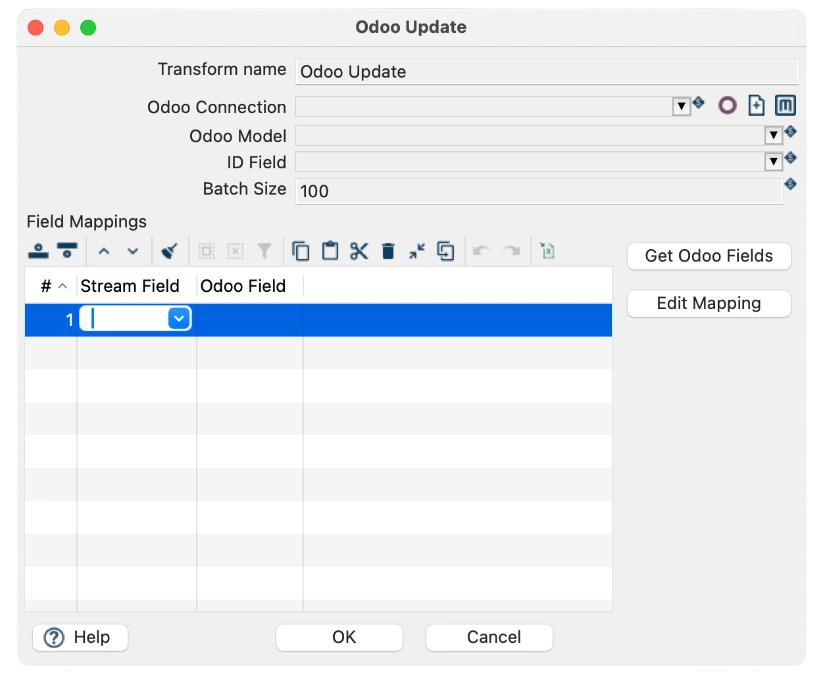
Parameter | Description |
Transform Name | A unique identifier for this transform step in your workflow. Used for logging and error tracking. Example: "update-B2B-contacts" |
Odoo Connection | The configured Odoo server connection from your Hop environment. Dropdown selector displays all available connections. Example: "odoo-testing" or "odoo-production" |
Odoo Model | The target business object/model in Odoo to update. Uses Odoo's internal model naming convention. Examples: res.partner (contacts), crm.lead (leads), sale.order (orders). Click "Get Odoo Fields" to see all available fields. |
ID Field | The stream field (from your input data) that contains the unique identifier for records to update. Usually "id" (primary key) but can be any field that uniquely identifies a record (email, SKU, etc.). The ID values MUST exist in Odoo. |
Batch Size | Number of records to update in each batch. Default: 100. Typical range: 100-1000. Larger batches are faster but may timeout. Smaller batches are safer. Start with 100-500 and adjust based on performance. |
Connection configuration
Before using the transform, you must define an Odoo database connection. The fields required are:

Field | Required | Description |
Odoo connection name | Yes | A descriptive name for the connection in Hop. |
Base URL (domain) | Yes | Full URL of the Odoo instance, e.g., https://mycompany.odoo.com. |
Username | Yes | Odoo username for authentication (or API user). |
Password | Yes | Odoo password or API key, depending on authentication method. |
Database | Yes | Name of the Odoo database to query. |
Practical examples
Example 1: Updating B2B Contact Information
Scenario: Your company maintains a B2B contact database in an external CRM system. You need to regularly sync contact information to Odoo, updating phone numbers, addresses, and comments.
Workflow Steps:
Read existing contacts from Odoo with their IDs
Filter to include only B2B contacts
Add enrichment data like comments or status updates
Update contact records with new information
Configuration Settings:
Parameter | Value |
Transform Name | update-B2B-contacts |
Odoo Connection | odoo-testing |
Odoo Model | res.partner |
ID Field | id |
Batch Size | 100 |
Field Mappings:
comment (Stream) → comment (Odoo)
phone (Stream) → phone (Odoo)
street (Stream) → street (Odoo)
city (Stream) → city (Odoo)
Result: 150 B2B contacts updated with latest information from external CRM, maintaining synchronization without creating duplicates.
Example 2: Automated Lead Status Updates
Scenario: Your marketing automation system identifies qualified leads. You automatically update lead statuses in Odoo when they meet qualification criteria.
Configuration Settings:
Parameter | Value |
Transform Name | qualify-marketing-leads |
Odoo Connection | odoo-production |
Odoo Model | crm.lead |
ID Field | id |
Batch Size | 50 |
Field Mappings:
stage_id (Stream) → stage_id (Odoo)
priority (Stream) → priority (Odoo)
Example 3: Inventory Level Synchronization
Scenario: Your warehouse system tracks real-time inventory. You sync inventory quantities to Odoo products hourly to keep stock levels accurate.
Configuration Settings:
Parameter | Value |
Transform Name | sync-inventory-levels |
Odoo Connection | odoo-production |
Odoo Model | product.product |
ID Field | id |
Batch Size | 200 |
Field Mappings:
qty_available (Stream) → qty_on_hand (Odoo)
warehouse_location (Stream) → location_id (Odoo)