Icon

Usage
The core parameters define how records are created/updated in Odoo:
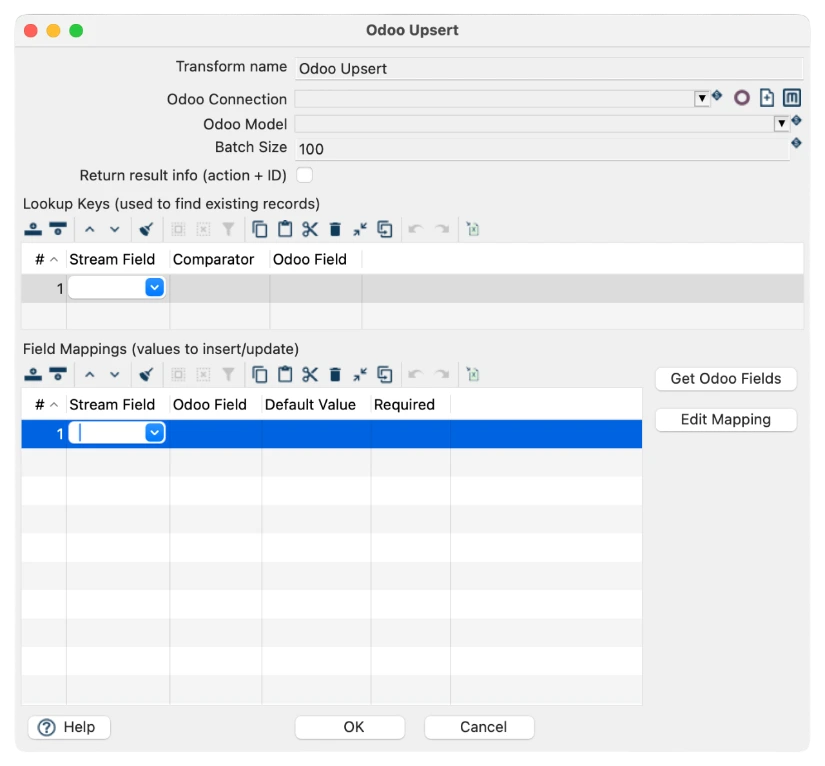
Transform Name: Unique identifier for this transform (e.g., "upsert-contacts"). Used for logging and error tracking.
Odoo Connection: Configured Odoo server connection. Dropdown shows available connections (e.g., "odoo-production").
Odoo Model: Target Odoo business object (e.g., res.partner for contacts, product.product for products, crm.lead for leads).
Batch Size: Number of records to process per API batch (default: 100, range: 1-1000). Higher = faster but more memory.
Return result info (action + ID): Checkbox - when enabled, transform returns action (created/updated) and Odoo record ID for each record.
Lookup Keys (Used to Find Existing Records)
Lookup Keys determine whether a record already exists in Odoo. If a match is found, the record is UPDATED. If no match is found, a new record is CREATED. You can define multiple keys (AND logic).
How it works:
For each incoming record, Upsert searches Odoo using the Lookup Keys
If Odoo finds a record matching ALL keys → UPDATE that record
If Odoo finds NO match → CREATE a new record
Lookup Key Configuration
Stream Field: Field from your input data (e.g., email, hubspot_id, sku)
Comparator: Comparison operator: "=" (equals), "!=" (not equals), "like", etc. Usually "=" for matching.
Odoo Field: The Odoo field to compare against (e.g., email, external_id, default_code)
Example Lookup Key:
Stream Field: email
Comparator: =
Odoo Field: email
Logic: "Find record where Odoo email = input email"
This finds existing contacts by email. If found, updates them. If not found, creates new contact.
Field Mappings (Values to Insert/Update)
Field Mappings define which data from your input stream should be written to which Odoo fields. Only mapped fields are updated - other Odoo fields remain unchanged.
Field Mapping Configuration:
Stream Field: Field from your input data (e.g., first_name, email, phone)
Odoo Field: Target Odoo field where data should be written (e.g., name, email, phone)
Default Value: Value to use if Stream Field is NULL/empty (optional)
Required: Checkbox - if checked, Odoo will reject records if this field is empty
Buttons:
Get Odoo Fields - Automatically populates available Odoo fields for the selected model
Edit Mapping - Opens advanced mapping editor for complex transformations
Upsert Data Flow
How Odoo Upsert processes data:
1. Read incoming record from stream
2. Apply Lookup Keys to search Odoo for existing record
3. If record found → UPDATE with values from Field Mappings
4. If record not found → CREATE new record with values from Field Mappings
5. Return result (if enabled): action (created/updated) + Odoo record ID
6. Move to next record and repeat
Batch Processing
Records are processed in batches for efficiency. Batch Size determines how many records are sent to Odoo in a single API request.
Batch Size 100 (default) - Good balance of speed and memory usage
Batch Size 50 - Use for large records or memory-constrained environments
Batch Size 200+ - Use for high-performance environments with good bandwidth
Batch Size 1 - Only for debugging (slowest, but processes one at a time)
Connection configuration
Before using the transform, you must define an Odoo database connection. The fields required are:

Field | Required | Description |
Odoo connection name | Yes | A descriptive name for the connection in Hop. |
Base URL (domain) | Yes | Full URL of the Odoo instance, e.g., https://mycompany.odoo.com. |
Username | Yes | Odoo username for authentication (or API user). |
Password | Yes | Odoo password or API key, depending on authentication method. |
Database | Yes | Name of the Odoo database to query. |
Practical examples
Example 1: HubSpot Contacts to Odoo (res.partner)
Scenario: Sync HubSpot contacts to Odoo, updating existing ones by email.
Core Configuration:
Odoo Model: res.partner (Contacts)
Batch Size: 100
Return result info: Checked
Lookup Keys:
Stream Field: email | Comparator: = | Odoo Field: email
Field Mappings:
firstname + lastname → name
email → email
phone → phone
company → parent_id (or skip)
address → street
city → city
zip → zip
Example 2: Shopify Products to Odoo (product.product)
Scenario: Sync Shopify products to Odoo, matching by external ID.
Lookup Keys:
Stream Field: shopify_id | Comparator: = | Odoo Field: external_id
Field Mappings:
product_name → name (Required)
sku → default_code
price → list_price
description → description
shopify_id → external_id
Example 3: Multiple Lookup Keys (Email + Company)
Scenario: Match contacts by email AND company to handle name changes.
Lookup Keys (AND logic):
Key 1: email = email
Key 2: company_name = parent_id.name
Result: Only updates if BOTH email AND company match existing record.