Icon

Usage
These essential parameters are required to connect and authenticate with your Shopify store:
Transform Name: Unique identifier for this transform (e.g., "read-shopify-products"). Used for logging and referencing.
Shopify Subdomain: Your Shopify store subdomain. Format: https://[your-store].myshopify.com. Example: https://acmestore.myshopify.com
Shopify API: Dropdown to select which Shopify API version to use (e.g., 2024-01, 2023-10). Should match your API token version.
Shopify API Token: Authentication token for API access. Generate from Shopify Admin: Settings > Apps and integrations > Develop apps. Keep this secret!
Configuration Tabs
Tab 1: General (Connection & API)
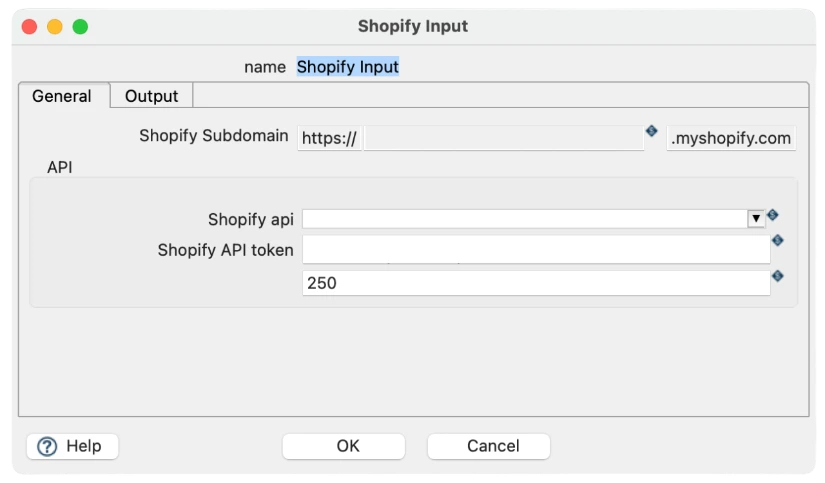
The General tab contains all connection and authentication settings for your Shopify store.
Settings in General Tab:
Shopify Subdomain - Your store URL
Shopify API - API version selection
Shopify API Token - Authentication token
Additional API parameters if applicable
Shopify Subdomain Configuration
Enter your Shopify store's subdomain. The system automatically completes the URL format.
Your store name: "acmestore" → https://acmestore.myshopify.com
Do NOT include https:// or .myshopify.com - only enter the subdomain
If unsure, find it in your Shopify Admin URL: admin.shopify.com/admin/stores/[subdomain]
API Token Configuration
Authentication tokens provide secure access to your Shopify store data.
How to obtain API Token:
Log in to Shopify Admin
Go to Settings > Apps and integrations
Click "Develop apps"
Create a new app or select existing app
Go to Configuration tab
Scroll to "Admin API access scopes"
Select required scopes (read_products, read_orders, etc.)
Save configuration
Go to "API credentials" tab
Copy the "Admin API access token"
Paste into Shopify API Token field in Hop
⚠️ SECURITY: Keep API token confidential. Use environment variables (e.g., ${SHOPIFY_API_TOKEN}) instead of hardcoding.
Tab 2: Output (Field Configuration)
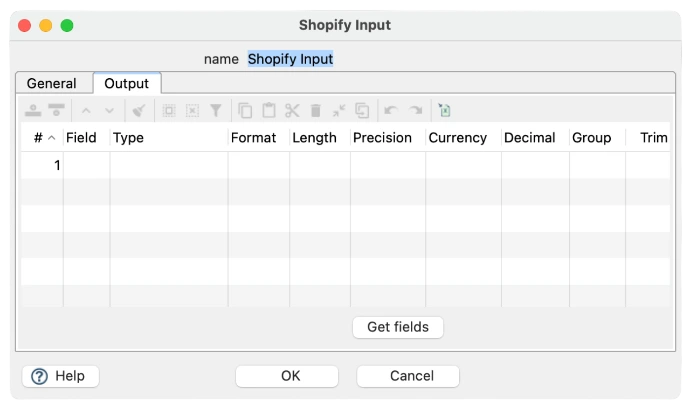
The Output tab displays available fields from Shopify and allows you to customize which fields to extract.
Field Configuration Table Columns:
# - Field row number
Field - Name of Shopify field (e.g., id, title, handle)
Type - Data type (String, Number, Date, Boolean, etc.)
Format - Format specification (for dates/numbers)
Length - Field length constraint
Precision - Decimal precision (for numeric fields)
Currency - Currency code if applicable
Decimal - Decimal separator
Group - Thousands separator
Trim - Remove leading/trailing whitespace
Field Management:
Get fields - Automatically populates available fields from Shopify API
Add field - Manually add a specific Shopify field
Delete field - Remove unwanted fields to reduce data volume
Reorder fields - Drag to change field order
Edit field properties - Customize type, format, length, etc.
Shopify Objects & Available Fields
Object: Products
Extract product information from your Shopify store catalog.
Common Product Fields:
id - Unique Shopify product ID
title - Product name
handle - URL-friendly product identifier
description - Product description
vendor - Product vendor/supplier
product_type - Category or type
tags - Product tags for organization
created_at - Product creation date
updated_at - Last update date
published_at - Date published to store
variants - Product variants (SKU, price, inventory)
images - Product images
Object: Orders
Extract order information including customer details and line items.
Common Order Fields:
id - Unique order ID
order_number - Sequential order number
created_at - Order creation date
updated_at - Last updated date
customer - Customer information
line_items - Products in order
total_price - Order total
financial_status - Payment status (paid, pending, refunded)
fulfillment_status - Shipping status (fulfilled, partial, unshipped)
currency - Order currency
shipping_address - Shipping details
billing_address - Billing details
Object: Customers
Extract customer profile information from your Shopify store.
Common Customer Fields:
id - Unique customer ID
email - Customer email address
first_name - Customer first name
last_name - Customer last name
phone - Customer phone number
created_at - Account creation date
updated_at - Last updated date
addresses - Customer addresses (shipping/billing)
default_address - Primary address
total_spent - Customer lifetime value
orders_count - Number of orders
tags - Customer tags for segmentation
Practical examples
Example 1: Product Extraction for Odoo Sync
Scenario: Extract Shopify products to sync with Odoo inventory system.
Configuration:
Transform Name: read-shopify-products
Shopify Subdomain: mystore
Shopify API: 2024-01 (or current stable version)
API Token: [Generated from Shopify Admin]
Fields to Extract:
id (Shopify product ID)
title (Product name)
handle (URL slug)
description (Product description)
vendor (Supplier)
variants (SKU and pricing)
images (Product images)
Example 2: Customer Data Extraction
Scenario: Extract Shopify customers to sync with Odoo CRM.
Configuration:
Transform Name: read-shopify-customers
Shopify API Token: [Same as products, must have read_customers scope]
Essential Fields:
id
email (unique key for matching)
first_name
last_name
phone
default_address (shipping address)
total_spent
orders_count
Example 3: Order Data for Fulfillment
Scenario: Extract recent orders to sync with fulfillment system.
Fields to Include:
id
order_number
created_at
customer (name and email)
line_items (what was ordered)
shipping_address
fulfillment_status
total_price